
Once a client has consented, you can move or add them to different workspaces at any time — for example, if a client should now be visible to your Tax team as well as your Firm workspace.
This article walks through updating a client's visibility by workspace.
Why would I want to move a client into a workspace?
You might want to move a client if:- They should only be visible to specific team members.
- You need to separate records for sensitive clients.
Before You Begin
In order to make any adjustments to a client's visibility, they must have already granted consent. Make sure you have the following ready:
- The client's name, so you can find them quickly in your client list.
- You'll need to know in which workspace(s) you want the client to appear.
Tips
-
- Every consented client must always belong to at least one workspace.
- You cannot remove a client from all workspaces without deleting the client entirely.
- A client can belong to more than one workspace at a time. Moving them to a new workspace does not require removing them from their current one.
Steps to Adjust a Client's Workspaces
Start on your Home screen.
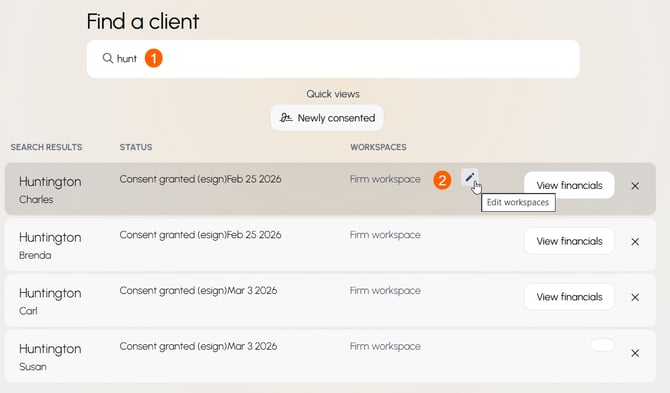
- Search for the client you'd like to move. You can search by first name, last name, partial name, household name, nickname, tag, or tax ID number.
- In the search results, hover over the client's current workspace(s). Click the pencil to edit workspaces.
- The new box shows every workspace. Check the box next to each workspace where you want the client to appear. Uncheck any workspace you want to remove them from.
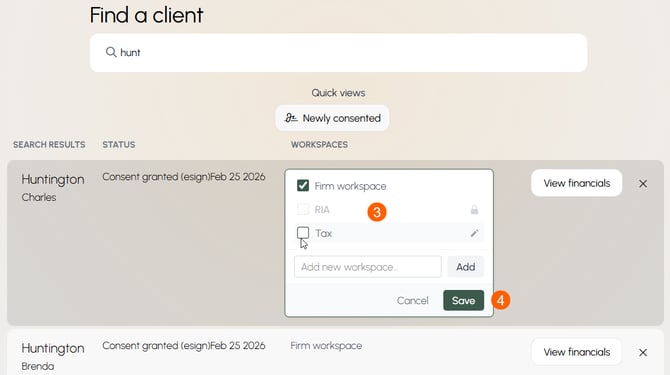
- Click Save to apply your changes.
Tips
-
- If you want to add the client to a workspace that doesn't exist yet, type the new workspace name into the Add new workspace field and click Add.
- Workspaces marked with a lock icon indicate you don't have permission to add or remove clients from that workspace. Contact your workspace Admin if you need access.
- Use the Newly consented quick view on the Home screen to quickly find clients who may still need to be assigned to the right workspace.
What Happens Next
- The client will immediately appear in every workspace you selected, and will no longer appear in any workspace you unchecked.
- If you created a new workspace in this process, you are automatically the Admin of that workspace. You will be the only team member who can see clients in that workspace until you add others.