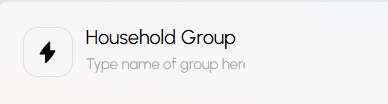
Grouping related clients into a Household lets you organize spouses, dependents, businesses, trusts, and estates together - and quickly navigate between everyone in that group instead of searching for each one independently.
Why would I want to move a client into a household?
Households are especially useful for
- Reviewing joint filings, shared businesses, or related trusts and estates during planning or review.
- Tracking your usage if your pricing is based around household groupings.
What counts as a Household?
In TaxStatus, a Household is any two people who file jointly, along with their dependents, businesses, trusts, and estates. Grouping these clients together keeps related tax and financial information organized in one place.
Tips
-
- Only clients who have consented and have records available can be assigned to a household. Grouping is done once each person shows up as an active client.
- A client can only belong to one household, but they can be in multiple workspaces.
Grouping clients into a household
Once each client's records are available in your platform, you can group or move them into a household.
Start on your Home screen.
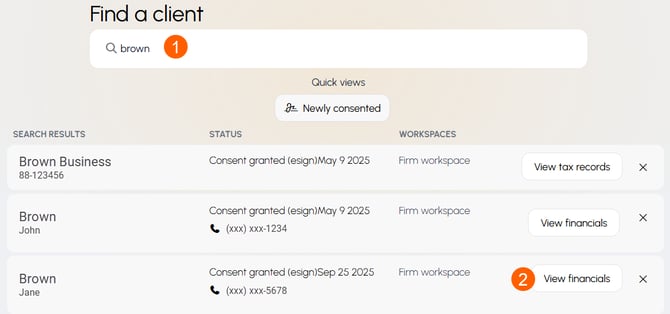
- Search for the client's name that you'd like included in a Household.
- Click View financials or View tax records.
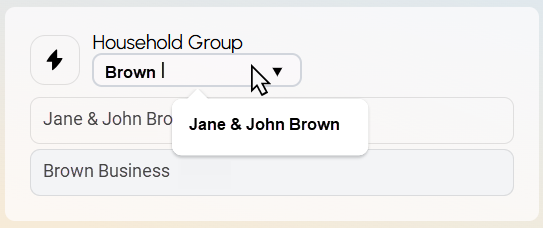
- Type the name of the Household you would like this client grouped with.

- Repeat this step for other members of the household.
Navigate between household members
Once clients are grouped into a Household, you can navigate directly to another household member's Financials (individual) or Tax Records (business) page without needing to search for each one separately. 
Rename a Household
To assign a client to a new or different household, click on the current Household Group name, delete it, and start typing. Any matching name will populate, so you can easily choose from already established households.
Remove a Member of a Household
To remove the Household Group for a specific client, simply delete the name typed into the naming box.
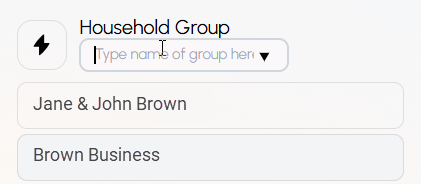
Hit enter, and the grouping will be removed. You can assign it to a new household or leave it ungrouped.