
Your goal is to engage with as many clients as possible using your consent link. When your clients see your firm name and logo, they feel more comfortable knowing that the link is secure and trusted by you, their trusted advisor. This article shows you how to personalize the link with your brand settings.
Before You Begin
-
If you plan to brand your consent link, have a logo file available.
-
Have email addresses ready to customize who is notified by email when a client completes their consent.
Customize your consent link
Remember to save any changes you make.
- From your Home screen, click Client consent options.
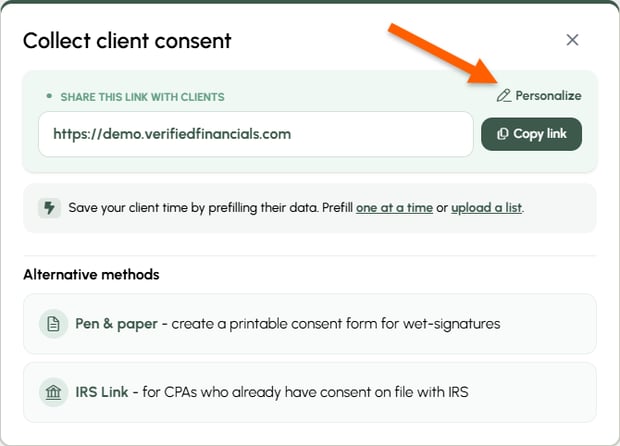
- In the pop-up menu, choose Personalize.
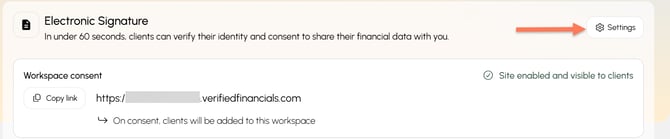
- Open Settings to make customizations. The various customization options are shown below.
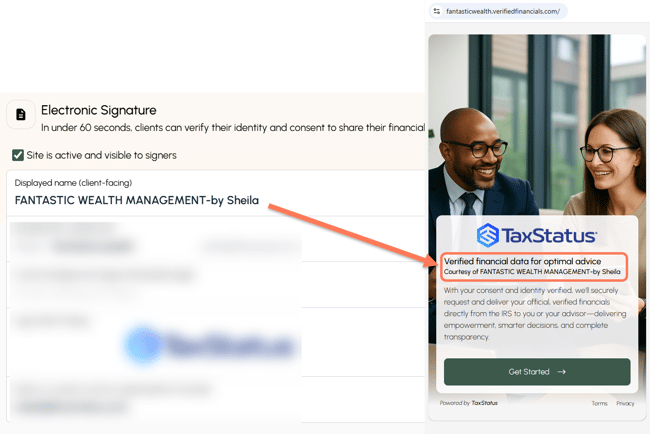
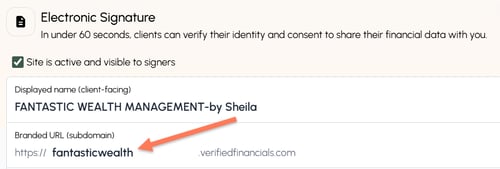
- Displayed name: Adjust the name that clients will see when they open your consent link.
-
Branded URL: Change the name of your link to match your firm name, website address, and/or email domain.
-
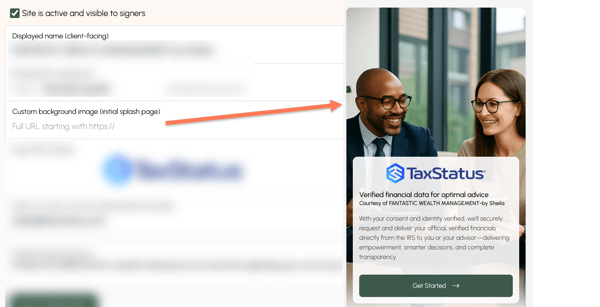
Custom background image: Change the background image clients see to match your website or personalize it.
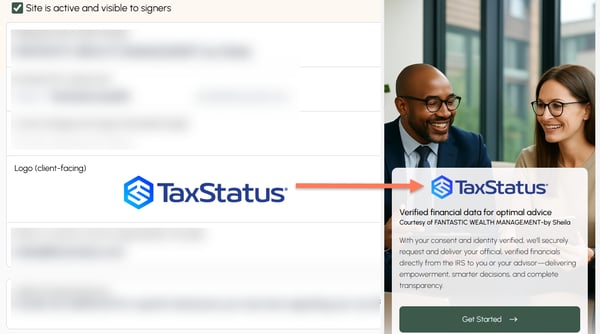
- Logo: Improve your brand image and provide comfort and familiarity to your clients by adding your logo. A horizontal logo, PNG format, with a transparent background works best.
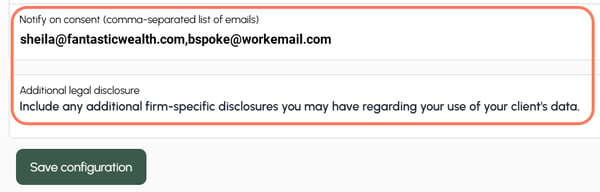
- Notify on consent: List email addresses where you'd like email notification sent when a client completes their consent. Add multiple email address by separating them with a comma, no spaces.
- Additional legal disclosure: Add any additional legal disclosure language your firm requires/prefers.
- Save any changes you make to your consent link.

Tips
-
In some instances, the ability to customize your consent link is restricted by your overseeing enterprise.