
Including your team members on your workspace gives them visibility into shared client information. Team members of a workspace can see all clients in that folder.
Tips:
- On each workspace, use the dropdown menu to see the team members with access to that workspace.
- Only an Admin for a given workspace can add or remove team members from that workspace.
ADD a team member
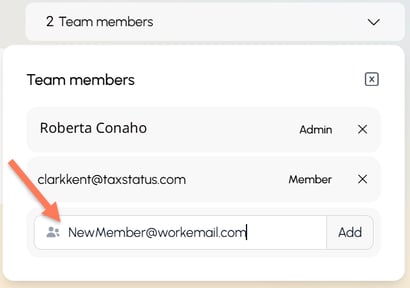
If you are a workspace Admin, you can add a new team member. Simply type their email address and click Add.
The first time each team member tries to view client information, they must verify their identity by providing a government ID and taking a live selfie. This is a security measure to confirm that each team member uses unique login credentials.
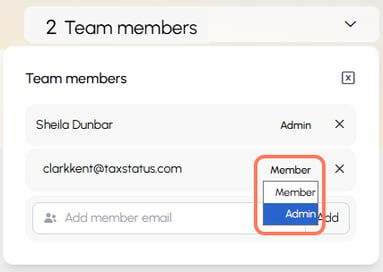
Change between Member and Admin
New team members are defaulted to Member access level. This means they cannot add/remove/adjust team members within that workspace. Use the dropdown menu to give them Admin privileges.
REMOVE a team member
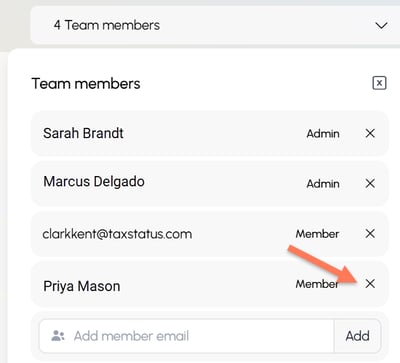
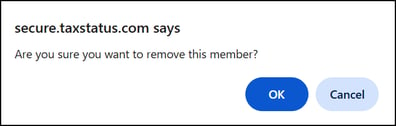
Click the X next to the team member's name and confirm their removal. This removes them from a specific workspace. If the team member leaves your firm, you will want to confirm that they are removed from all workspaces.
Related Articles
- Add or Remove Team Members
- What is a workspace?