
Grouping clients lets you easily find and navigate between businesses, trusts, estates, and extended family members.
Why would I want to assign a client to a group?
-
Groups are especially useful for reviewing related entities during planning.
- Grouping clients together can keep related income, filings, tax, and other IRS metrics organized in one place.
-
Easily toggle between members of a larger family to see related clients in the way that works best for your team.
Tips
-
- Only clients who have consented and have records available can be assigned to a Group.
- A client can only belong to one Group, but they can be in multiple workspaces.
Grouping clients
Once each client's records are available on your platform, you can group them to conveniently link them together.
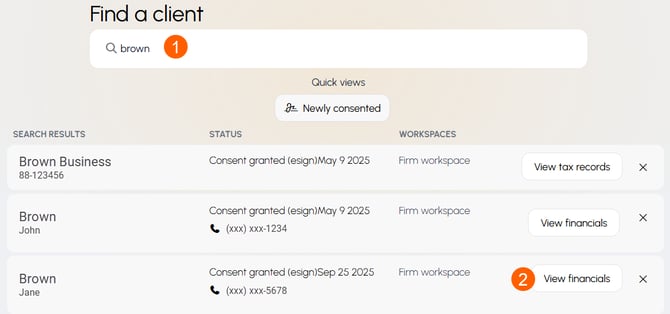
From your Home screen,
- Search for the client's name.
- Click View financials or View tax records.
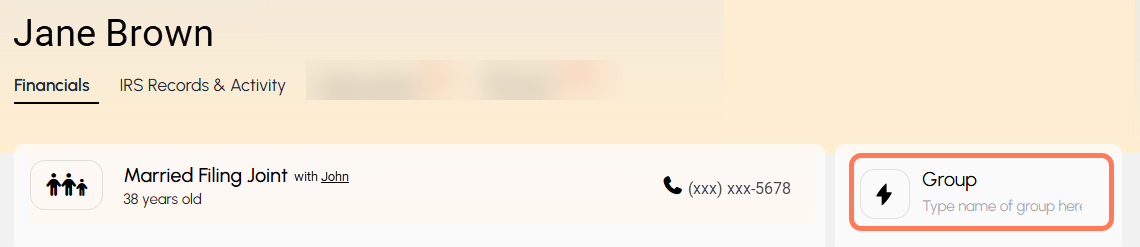
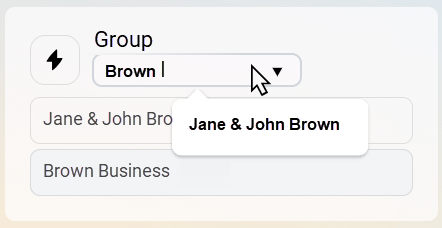
- Type the name of the Group. Repeat this step for other members of the group.
Navigate between group members
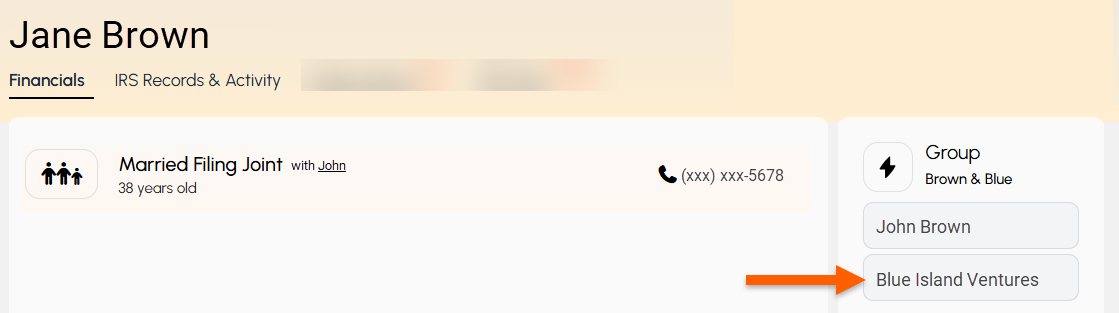
Once clients are grouped, you can navigate directly to another group member's Financials (individual) or Tax Records (business) page without searching for each one separately.
Remove a Group
To remove the Group for a specific client, simply delete the name typed into the naming box, and hit enter.
Rename a Group
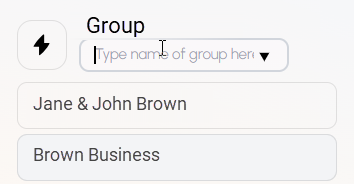
To assign a client to a new or different Group, delete the current Group name, and start typing. Any matching name will be populated, so you can easily choose from existing groups.
Related articles